Shopify Plus Integration
1. Search for Codebeans Geolocation in the Shopify app store or find us here: https://apps.shopify.com/shopygeo-checkout
2. Click Install and follow the instructions, then select your subscription.
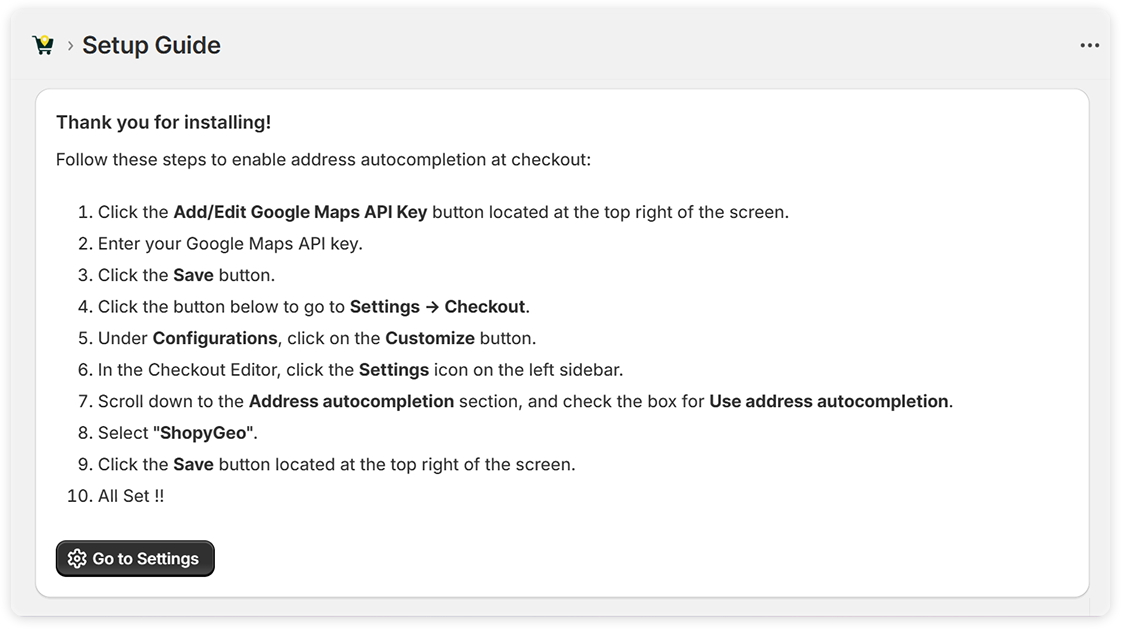
3. Quick Setup Guide instructions are shown below.
Note:
For more information on subscriptions, please refer to the FAQ section below.
Add Your Google Maps API Key
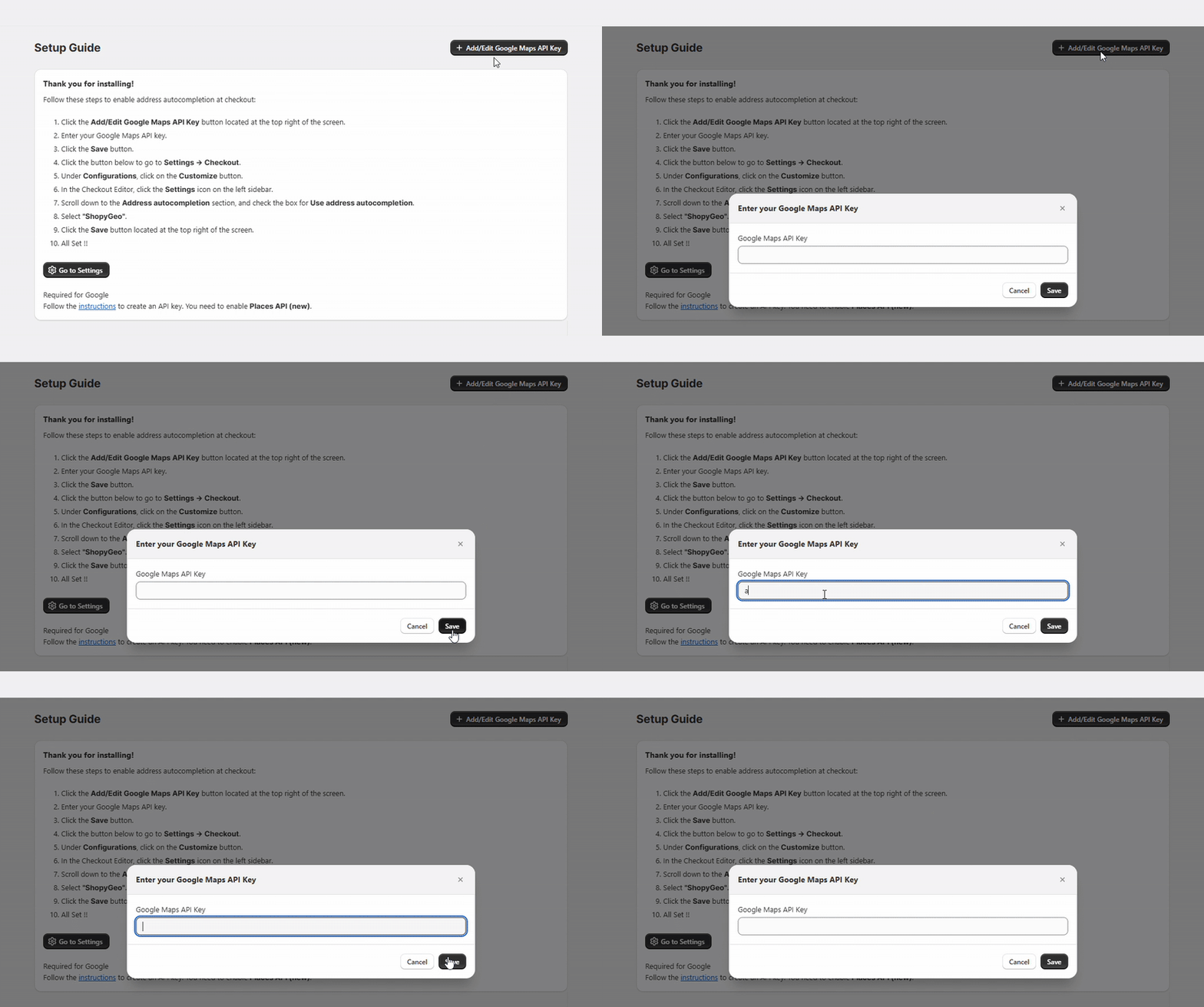
1. Click on the Add/Edit Google Maps API Key.
2. Enter your Google Maps API Key.
3. Click the Save button.
Enable Smart Address Autocompletion in Shopify
Codebeans Geolocation can also be integrated into the Shopify Checkout using the Address Autocompletion feature. This functionality, powered by Shopify’s API, displays address suggestions as customers type directly into the address field.
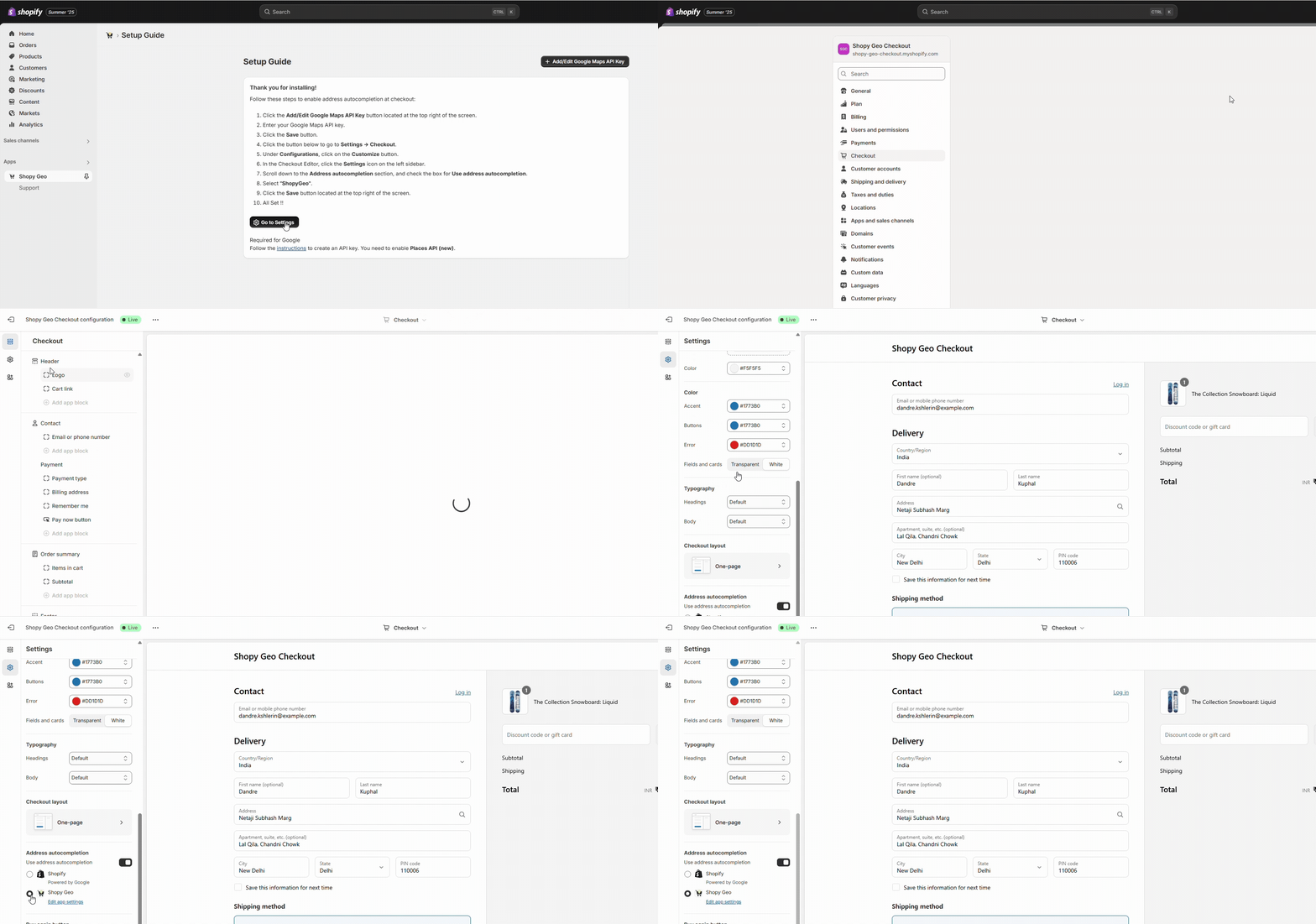
To enable Address Autocompletion, follow these steps:
1. Go to Checkout Settings. Navigate to your store’s admin panel and open the Checkout settings section.
2. Scroll to Address Autocomplete. In the settings page, find the option titled “Enable Address Autocomplete” under the delivery address section.
3. Toggle the Switch. Click on the toggle switch to enable the address autocomplete feature.
4. Save Your Settings. Don’t forget to save the changes to activate autocomplete on your checkout form.
5. Test the Feature. Go to your storefront, add a product to the cart, and proceed to checkout. Begin typing in the address field and watch real-time address suggestions appear!
Global Lookup
Experience a faster, smarter checkout process with Codebeans Geolocation’s Address Autocomplete.
As the customer begins typing their address during checkout, Codebeans Geolocation instantly displays relevant address suggestions, powered by the Google Maps API. With just a few keystrokes, users can select the correct address from the dropdown. This not only saves time but ensures more accurate shipping details.
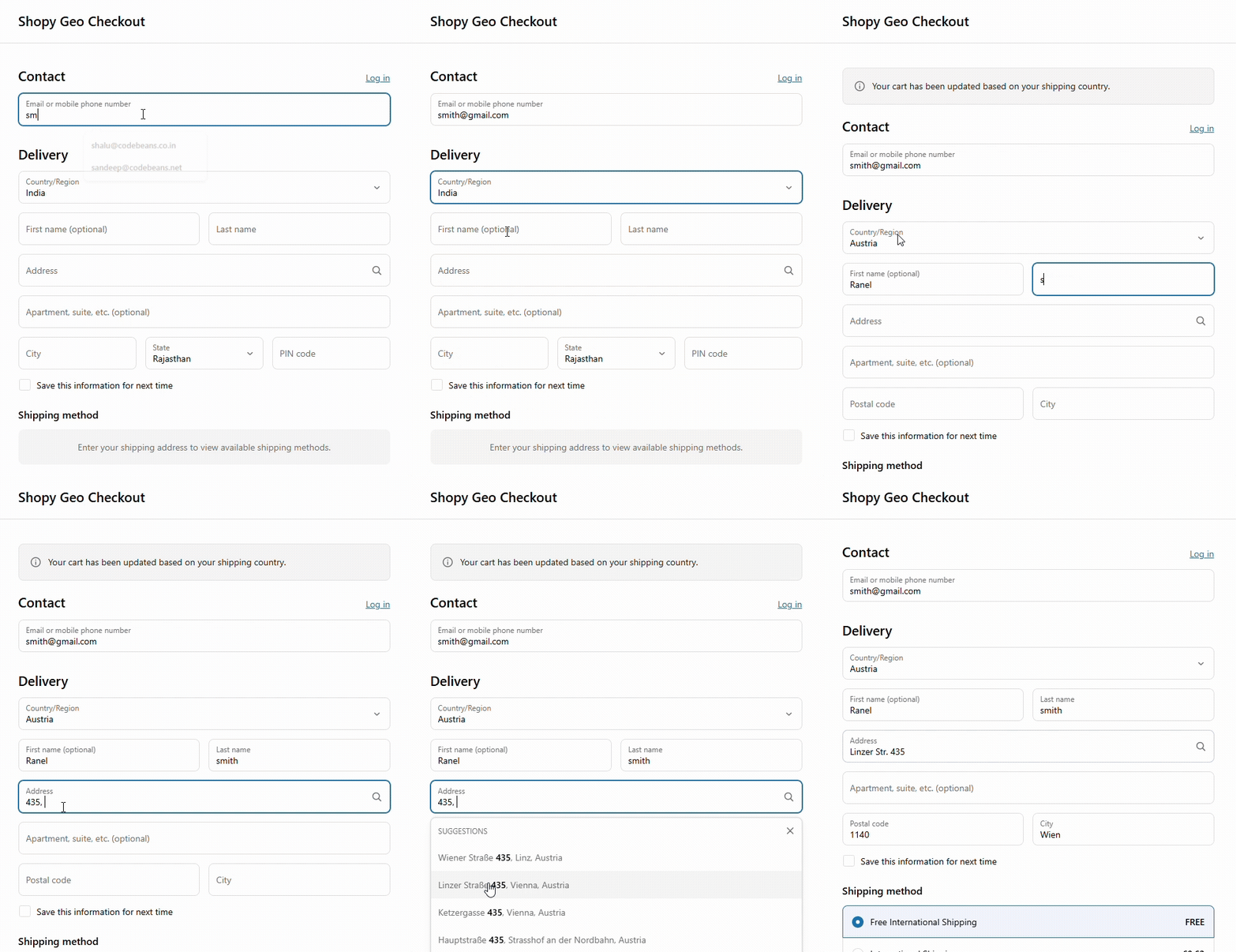
Step-by-Step Guide: Using Codebeans Geolocation Address Autocomplete at Checkout
1. Start Checkout
Begin the checkout process on the Shopify store that has Codebeans Geolocation integrated.
2. Enter Contact Details
In the contact section, enter your email address or mobile number.
3. Go to Delivery Address
Scroll to the Delivery section where the address fields are shown.
4. Begin Typing Address
Click into the Address field and start typing your street address.
5. View Suggestions
As you type, address suggestions will automatically appear in a drop-down menu, powered by Google Maps API.
6. Select the Correct Address
Choose the correct address from the list of suggestions by clicking on it.
7. Fields Auto-Fill
City, State, and Postal Code fields are automatically populated based on your selection.
8. Proceed with Checkout
Confirm the address and proceed to the shipping method or payment page.
FAQ
- Where can I get the Codebeans Geolocation app for Shopify Plus?
You can get the Codebeans Geolocation app for Shopify Plus directly from the Shopify App Store or the Codebeans Geolocation website. - Ease of Getting Started
Getting started is easy in just 3 simple steps!
– Install the Codebeans Geolocation app.
– Choose your subscription plan.
– Add the Codebeans Geolocation to your checkout.
- How does Codebeans Geolocation pricing work?
– Pricing is dependent on your selected plan: Pay as you go, Monthly, or Yearly.
– Full pricing details are available on the store page. - Does Codebeans Geolocation have a support team?
Yes, you can email support@shopylyst.com